How to Connect Cursor to Self-Hosted GitLab Using MCP?
Anshum ShankhdharMarch 6, 2026
Share this article


Let AI highlight what matters.
Today’s developers probably know about MCP – short for Model Context Protocol. This tech lets AI helpers, such as the one built into Cursor, connect directly to software tools. Instead of moving code snippets by hand into chats, the system pulls data on its own. Communication between programs happens behind the scenes now.
One goal stood out when I worked as a DevOps engineer – linking Cursor to our own GitLab 18.7 setup. That link meant the team could handle issues without leaving the editor. Merge requests became easier, too. Code searches happened right inside the workspace. Everything stayed in one place because of that connection.
“Easy – that is what it seemed. Not so, reality proved.”
This tale begins with me wrestling OAuth scopes. A glitch in GitLab showed itself, not expected but real. After rounds of testing, one thing led to another. The pieces clicked when least assumed.
Setting up an MCP server usually means picking between two structural paths.
1. The Recommended HTTP Approach
Here, the client – called Cursor – connects straight to the GitLab API using HTTPS. No extra load lands on your computer, which keeps things light. A regular OAuth exchange takes care of signing you in securely. Since it grows easily and works like today’s online tools do, experts point to this way first.
2. The STDIO Approach
A small program runs right on your computer to link things together. Instead of talking directly, the app sends messages through this local Node.js helper using basic input and output channels. That helper then reaches out to the GitLab server across the network. Adding this middle step makes it more complex, yet gives tighter handling of setup steps and login details.
A quick look back. A few months earlier, getting things working meant wrestling with concealed settings – like mcp_server or oauth_dynamic_client_generation – just to make progress.
Now here’s something – GitLab 18.7 includes the MCP server right inside. You’ll find it sitting at its own specific address:
| https://<your-gitlab-host>/api/v4/mcp |
One moment it’s just an idea. Then you point Cursor at your server. A browser appears like magic. Clicking Authorize feels almost too easy. Suddenly, everything runs on AI-driven workflows.
That was my belief, anyway.
Start by grabbing the client – Cursor, for me. With Cursor on your machine, point it toward your GitLab server next. Only then does it know where to go.
Start at Cursor Settings, then find the MCP area – click “Add New MCP Server.” Name it something clear before entering the address. With that done, head over to Cursor Chat. Open the panel there and begin typing queries about your codebase right away. This link becomes how the AI sees everything inside your GitLab setup. It watches, listens, responds – all through that pathway.
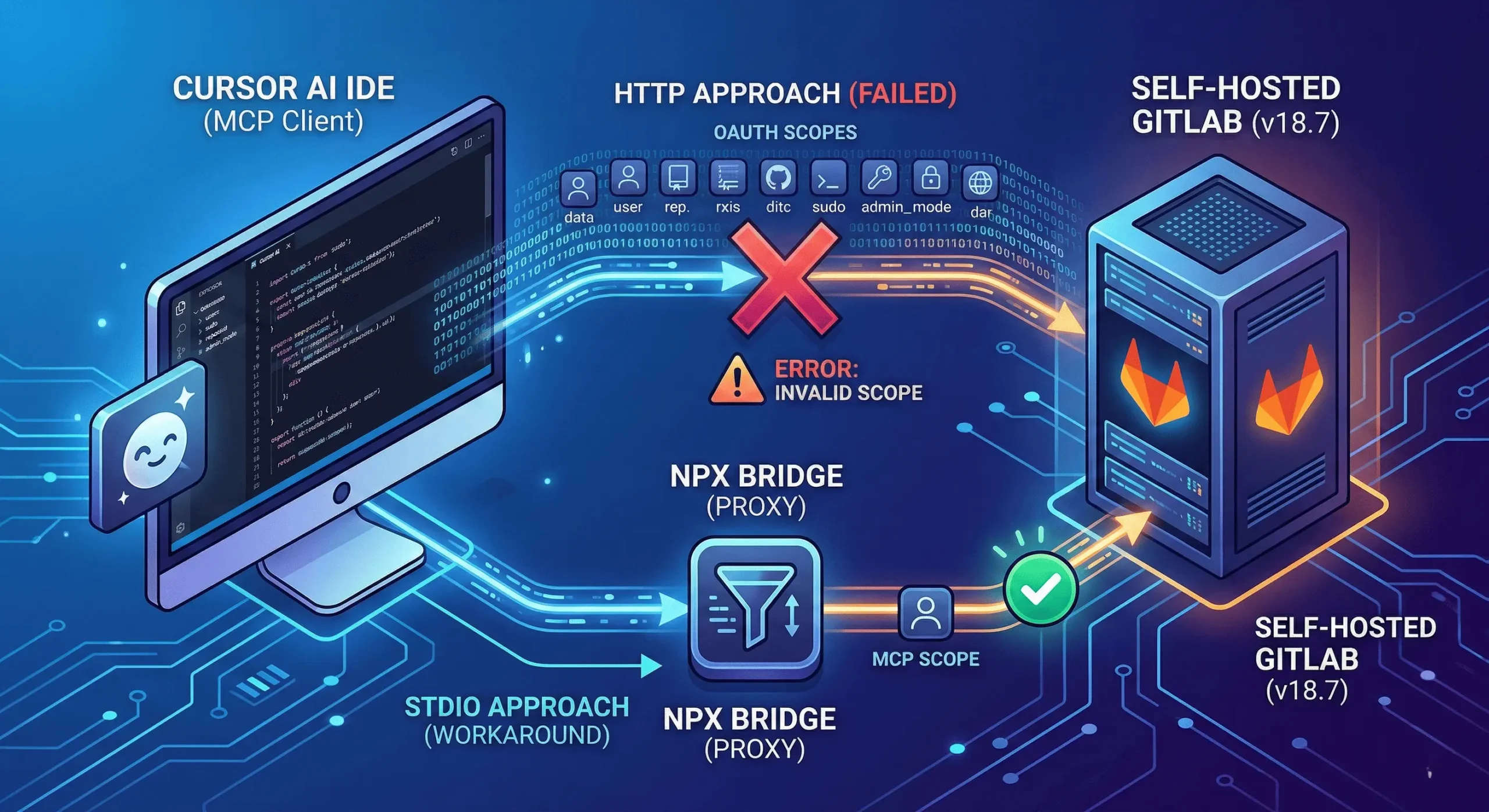
At first, I went with the usual HTTP method. After that, I placed this JSON inside Cursor’s MCP setup:
json
| { “mcpServers”: { “GitLab”: { “type”: “http”, “url”: “https://<your-gitlab-host>/api/v4/mcp” } } } |
A screen popped up on its own. Suddenly, everything clicked inside my head. Right there, staring back at me – it showed itself:
| “The requested scope is invalid, unknown, or malformed.” |
Into the logs I went. Turns out, Cursor isn’t exactly shy about permissions. Instead of asking only for what it needs for Artificial Intelligence Service, it reaches much further. A single request heads to GitLab – broad, sweeping, demanding control. This one call wants more than twenty-five separate rights. Sudo access shows up there. Admin mode too. Even full user scope gets pulled in. Not subtle at all.
A sudden alert popped up when our self-hosted GitLab 18.7 instance blocked a strange access attempt – unrecognized permissions triggered an automatic refusal. Without warning, Cursor sought high-level credentials, which made the system pause. Since it couldn’t verify who requested what, the platform responded coldly: unknown user detected, access revoked on principle.
Built my own path because Cursor’s client took too much without asking. Into the scene steps npx, bringing stdin like an old friend showing up late.
Not straight through HTTP – this time, a local proxy named mcp-remote did the job. By using it, I could adjust each request by hand, shaping it piece by piece. What made it click? A setup few would guess:
json
| { “mcpServers”: { “GitLab”: { “command”: “npx”, “args”: [ “-y”, “mcp-remote@latest”, “https://<your-gitlab-host>/api/v4/mcp”, “–static-oauth-client-metadata”, “{\”scope\”: \”mcp\”}” ] } } } |
Why this worked:
With the –static-oauth-client-metadata flag turned on, the connection asked solely for the mcp scope. Only then did GitLab recognize the request. Success came after that match clicked into place.
Right in the middle of all that mess, something caught my eye – a quiet little folder tucked away on the system: ~/.mcp-auth. It just sat there, unnoticed, like it was never meant to be found.
Inside this folder lives the local proxy’s identity along with the tokens pulled from GitLab. When authentication keeps looping, or after adjusting GitLab configurations, blame often lands here. Imagine it holds the memory of every handshake attempt. Stale or broken records can linger, like echoes of past failures. To reset things, removing the folder works – like clearing corrupted thoughts. Rebuilding starts fresh once it’s gone. This act? The digital equivalent of rebooting a stubborn device. Not magic, just cleanup.
This changes things. Fixing my own problem ended up helping others using GitLab.
Bringing up how Cursor’s “greedy” scopes disrupted the link caught their attention. GitLab’s team saw it differently after – instead of failing outright, the system could skip unknown scopes quietly.
Now the MR includes scopes_supported: [“mcp”] in GitLab’s OAuth metadata, telling MCP tools such as Cursor or Claude Desktop that only the mcp scope works here. Before this update, without clear signaling, apps defaulted to fetching scopes from the authorization server, grabbing every available GitLab permission – causing broken logins or extra access prompts. By adding proper support per RFC 9728 rules, authentication becomes tighter, simpler, correct. Everything runs smoothly now.
Folks spotted the real solution hiding inside this Merge Request:
Folks working on GitLab are tweaking things behind the scenes, thanks to what they’ve learned. Over time, these changes should handle Cursor’s messages more smoothly. That means the basic web connection could actually function without extra steps. Slowly but surely, it’ll just do its job.
Only after hours of digging – then shutting down some out-of-control node.exe tasks – did the screen finally show what I needed inside Cursor:
“Found 12 tools, 0 prompts, and 0 resources.”
Finding open issues in the DevOps project? I just tell Cursor – it replies right away. Starting with a question helps. The system listens, then responds without delay. Instead of searching manually, I get answers directly. It works every time I try. Response comes fast, clear, no extra steps needed.
Every so often, the usual method falls short in tight security setups. My workaround? The studio path helped dodge scoping troubles earlier. Now that the merge request confirms it’s resolved, relief kicks in. For users running updated GitLab builds, sticking to HTTP makes sense again. Hesitation aside, connecting gaps matters – dig into log files, share fixes, shape what powers daily workflows.
Looking to modernize your development workflows with AI-driven tools? Partner with an Artificial Modernization company to transform legacy systems into scalable, intelligent platforms.
 Anshum Shankhdhar
Professional Firefighter (of servers) Automating everything, breaking production, and pretending I know why it’s failing. Fluent in YAML, Bash, and last-minute debugging. If it ain’t in CI/CD, I don’t trust it.
We’re ISO/IEC 27001:2022 certified, ensuring your projects are executed with globally recognized security standards.

INDIA
 sales@nextgensoft.io
 +91 81284 66678

 Brijesh Shah
CEO, NextGenSoft
Brijesh Shah
CEO, NextGenSoft


