How to Enable Enterprise SSO with Auth0 and Azure AD (in 20 Minutes)
Prince PatelNovember 20, 2025
Share this article


Let AI highlight what matters.
So, your new SaaS app is finally working. You’re getting users, things are looking good. Then, the email lands in your inbox from a big potential client:
“We love your product and want to roll it out to our 500 employees. Do you support SSO with our Azure Active Directory?”
Your heart sinks a little. SSO? Enterprise logins? That sounds complicated, expensive, and like weeks of work you don’t have.
I’ve been there. And I’m here to tell you it’s not as scary as it looks. If you’re using Auth0 for your identity, you’re already 90% of the way there. You can absolutely get this set up in the time it takes to drink a cup of coffee.
I just went through this exact process. Here’s the no-fluff, developer-to-developer guide on connecting Auth0 to Azure AD.
The Goal:
We want to let users from a client’s “Azure AD” (now called Microsoft Entra ID) log in to our application using their company email and password, without us having to manage their credentials.
What You’ll Need:
The Auth0 Setup (The Easy Part)
First, we need to find our unique Callback URL.
Steps:

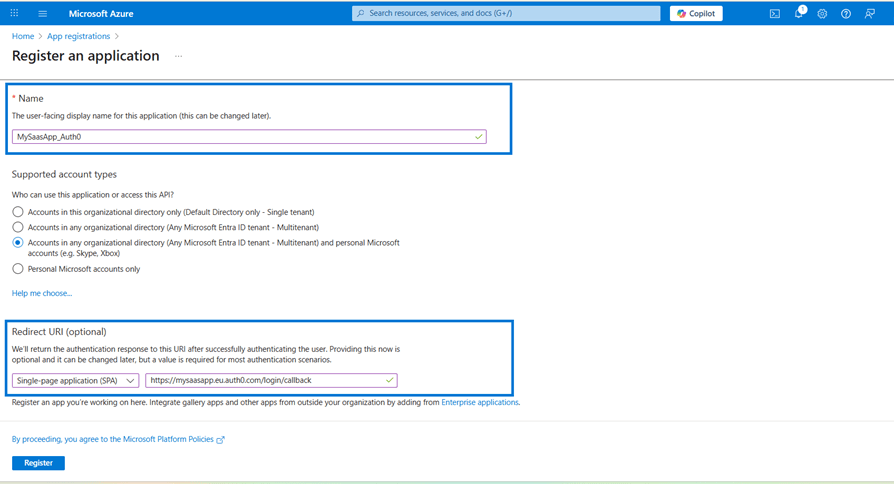
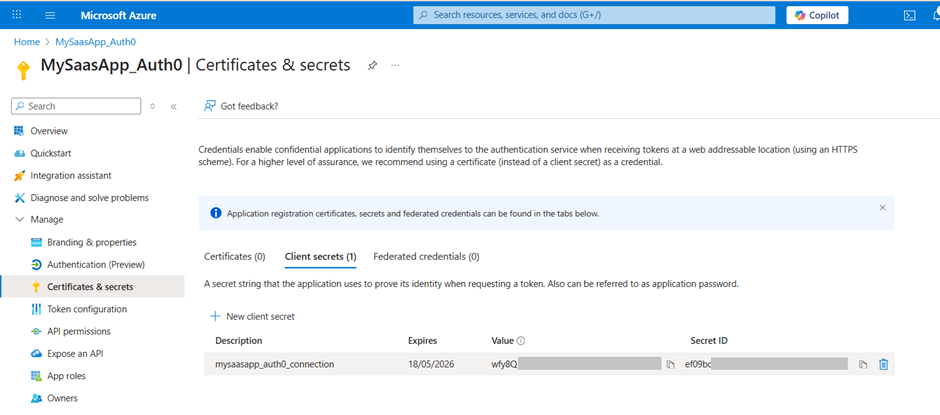
Return to Auth0
Go to Authentication → Enterprise connection.
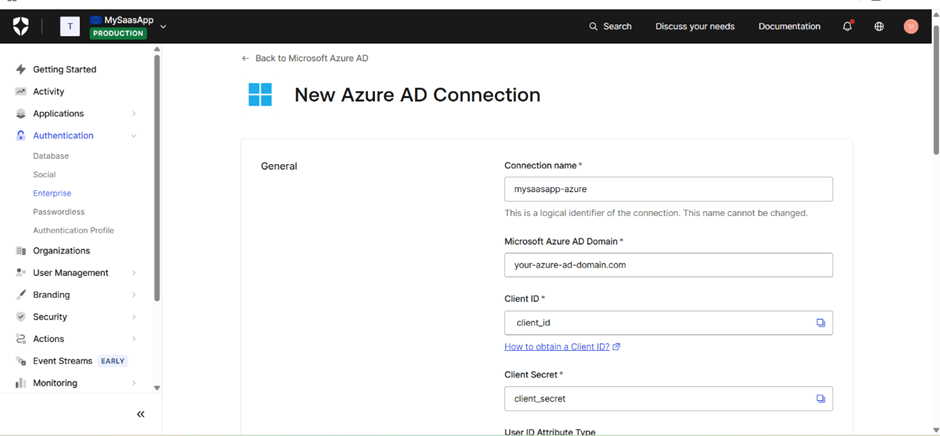
Create a new Microsoft Azure AD connection. Fill in:
Click “Try Connection” in Auth0.
Auth0 will redirect you to the standard Microsoft login page. Log in with a real user email from your client’s Azure AD.
If everything is correct, you’ll see a confirmation screen.
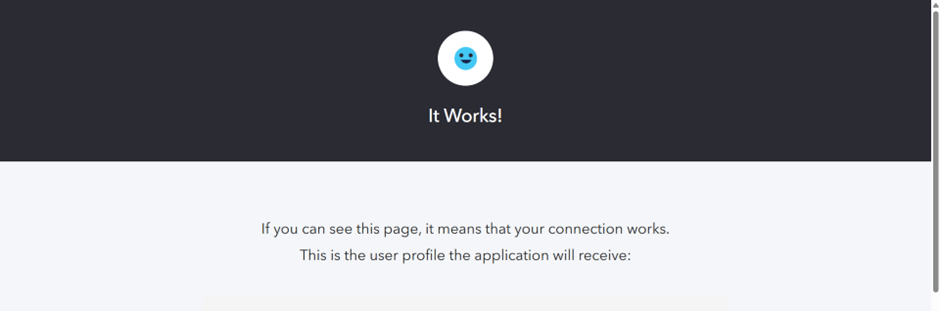
🎉 You’re Done!
Your application now supports Enterprise SSO with Azure AD using Auth0.
You can tell your client, “Yes, we support Azure AD SSO.” All they have to do is provide you with those keys (Client ID, Secret, and Domain), and you can set them up in minutes.
You just saved yourself weeks of complex SAML and OAuth configuration and made your app 10x more valuable to enterprise clients.
Now, go finish that coffee. You’ve earned it.
 Prince Patel
Prince Patel is a skilled software developer with hands-on experience in building reliable and efficient applications. He focuses on creating practical solutions that support business goals and drive digital progress. With a strong grasp of technology and a clear, problem-solving mindset, Prince consistently delivers clean, scalable code tailored to real-world needs.
We’re ISO/IEC 27001:2022 certified, ensuring your projects are executed with globally recognized security standards.

INDIA
 sales@nextgensoft.io
 +91 81284 66678

 Brijesh Shah
CEO, NextGenSoft
Brijesh Shah
CEO, NextGenSoft


